Open Graph: how to control your link preview on social media
Open Graph defines the title, description and image people see when you share your website. Which tags to use, what Meta says and how to update the preview.
You send a client the link to your services page and in the chat a gray box appears, with the title “Home” and no image. Nobody clicks on that. The page was good, but the first impression came from a sloppy preview.
What is Open Graph and what is it for?
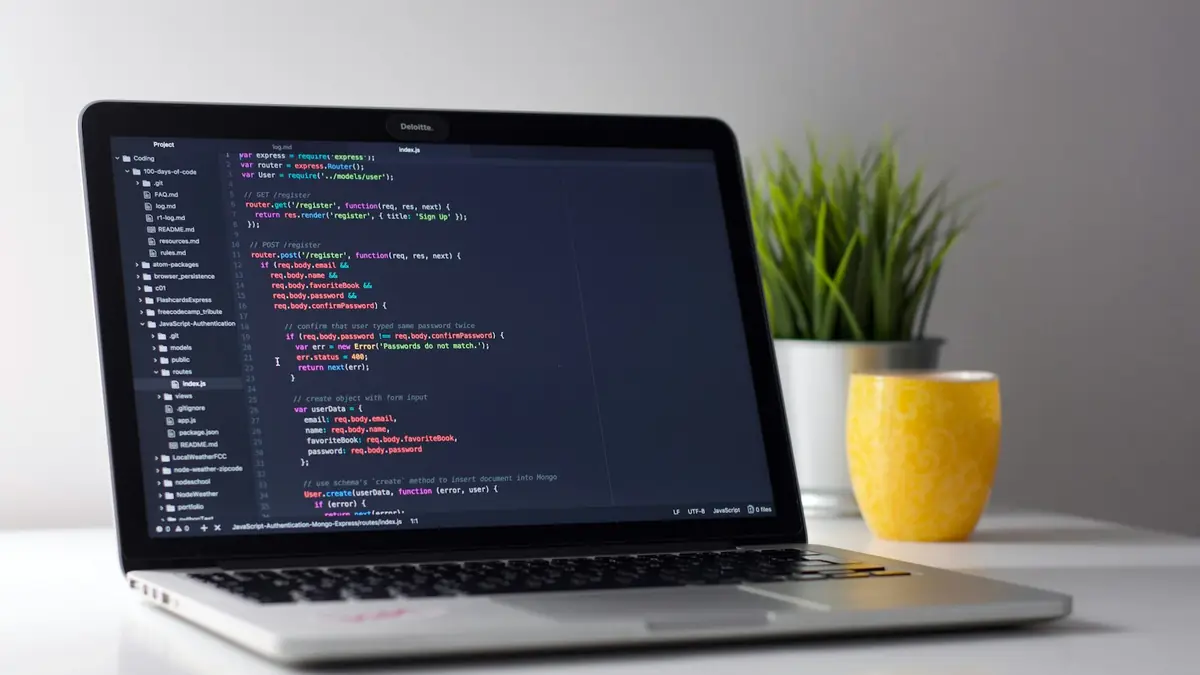
Open Graph is a protocol of meta tags that tells platforms which title, description and image to show when someone shares your link. You place them in the head of each page and, according to the official protocol, they turn a web page into an object with its own identity within social networks.
Without them, the platform guesses. Meta says so in its documentation for webmasters: without the tags, its crawler uses internal rules to pick the title, description and image. You lose control over what your clients see.
Which tags do I need at a minimum?
You need four: og:title, og:type, og:image and og:url. These are the ones the protocol marks as required on every page. It also pays to add the recommended ones.
| Tag | What it does |
|---|---|
| og:title | The page title as it will look when shared |
| og:type | The type of content, for example website or article |
| og:image | The address of the image that represents the page |
| og:url | The canonical URL, its permanent identifier |
| og:description | One or two sentences summarizing the page (recommended) |
| og:image:alt | Describes what the image shows (recommended if there is an og:image) |
The protocol also defines og:image:width, og:image:height and og:image:type. Meta asks you to declare the image's width and height so it loads properly the first time it is shared.
Which image should I use?
Use your own image for each page, sharp, and declared with its width and height. In its best practices for shared content, Meta states that, to look good on high-resolution screens, images should be at least 1080 pixels wide. That same guide explains that declaring the dimensions lets the crawler show the image right away, instead of downloading and processing it later.
As for file format, Meta's documentation lists these accepted types for og:image:type: image/jpeg, image/gif and image/png.
A detail that helps people with visual impairments: the protocol states that, if you define an image, you should also define its alternative text with og:image:alt.
Why does my link still show the old image?
Because the platform caches the image by its URL and does not change it while the URL stays the same. Meta explains it this way: images are cached by URL and are not updated unless the URL changes. If you replace the file portada.webp with another one under the same name, the preview will keep showing the old one.
Common mistake: overwriting the image with the same file name and expecting social networks to update it on their own. Upload the new image under a different name and update the og:image value.
The same thing happens with pages whose title or photo changes after campaigns. If you are about to launch a promotion, have the tags ready before you start sharing. In the guide on titles and meta descriptions that Google does show you can see the search engine equivalent.
How do I check and update the preview?
Paste the URL into Meta's Sharing Debugger: it shows the tags it reads and the errors or warnings it finds. According to the documentation, that tool also forces a fresh scrape of your page, so it is useful to refresh the preview after fixing things.

A short routine to review your pages:
- Open the five pages you share the most: home, services, contact and your most viewed guides.
- Check that each one has the four basic tags and og:description.
- Confirm that the image exists and that you declare its width and height.
- Run each URL through the Sharing Debugger and fix the warnings.
- Verify that your server supports gzip or deflate compression: Meta requires it so its crawler can read your site.
If you share a lot through messaging, it also helps to have clean links with a ready message: see how to create a WhatsApp link and QR with a prefilled message. And if your website is in several languages, each version needs its own tags; the guide on hreflang for multilingual sites helps you organize it. To measure how many visits arrive from those links, check how to use UTM in GA4.
In short
Back to the link with the gray box: the fix is not redesigning your page, it is declaring four tags, adding a description and your own image with its dimensions. When you change the image, change its URL too and check the result in the Sharing Debugger. If you want your website to come with all this solved from the start, see our web development service.
Frequently asked questions
Which Open Graph tags are required?
According to the protocol at ogp.me, four: og:title, og:type, og:image and og:url. og:description is optional but recommended.
Why does my link show an old image?
Meta explains that images are cached by URL and are not updated until the URL changes. Upload the new image with a different file name.
How do I see what Facebook reads from my page?
With Meta's Sharing Debugger: you paste the URL and it shows the tags it reads, the errors and the warnings, and it also forces a fresh scrape.
What size should the image be?
Meta recommends images at least 1080 pixels wide to look good on high-resolution screens, and declaring og:image:width and og:image:height.
Does Open Graph improve my Google ranking?
Its job is to control how your link looks when someone shares it, not to give you rankings on Google. For search, take care of your title and meta description.
Do not stop at the theory: apply it to your business
We implement Web development end to end, with your real operation. The first conversation is free.