WhatsApp Business automated messages: greeting, away and quick replies
How to set up the greeting message, the away message and quick replies in WhatsApp Business to serve customers better without being glued to your phone.
It's 9 p.m., you've closed the shop and three messages come in: "Do you deliver?", "How much is it?", "Are you still open?". If nobody answers, those customers write to the next business on the list. WhatsApp Business includes three free tools so nobody goes unanswered, and you can set them up in a few minutes.
Which automated messages does WhatsApp Business include?
It includes three: the greeting message, the away message and quick replies. The first two go out on their own based on the rules you set. Quick replies are not sent automatically: they are saved messages you pick with a shortcut so you don't type the same thing twenty times a day.
| Tool | When it acts | What it is for |
|---|---|---|
| Greeting message | First message or after 14 days without a chat | Greet and guide the customer |
| Away message | During the hours you schedule | Let them know you'll reply later |
| Quick replies | When you choose them | Answer frequent questions |
All of them are in the Tools tab of the app. If you're not sure which version to use yet, see what WhatsApp Business App is.
How do I set up the greeting message?
In the Tools tab, tap Greeting message, turn it on, write the text and choose the recipients. According to the WhatsApp Help Center, this message is sent automatically when a customer messages you for the first time or comes back after 14 days of inactivity in the chat.
You can send it to everyone, to people not in your address book, to everyone except the people you choose, or only to specific contacts. A good greeting message says who you are, what the customer can ask and how soon you reply.
Heads up: WhatsApp explains that if you have Meta Business Agent connected, greeting messages are turned off automatically. If you want to use them, you'll have to remove that agent.
How do I schedule the away message?
In Tools, tap Away message, turn it on, edit the text and choose when it's sent. The WhatsApp help article on away messages shows three scheduling options:
- Always send: the message goes out at all times.
- Custom schedule: only during a period you define, for example a vacation.
- Outside of business hours: only when your business is closed.
The third option only appears if you set your business hours in your business profile. Recipients are chosen the same way as for the greeting.
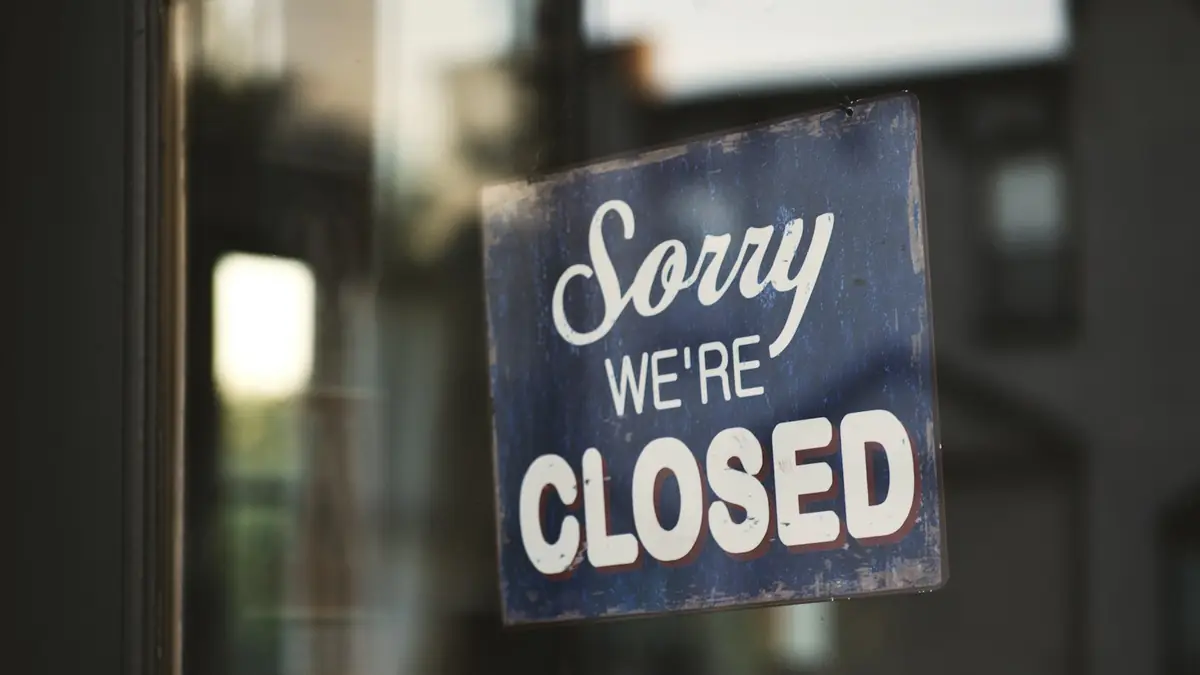
Common mistake: writing an away message that only says "we're closed". Say when you'll reply and, if you can, include a useful link, like your WhatsApp Business catalog, so the customer can move forward in the meantime.
How do I create quick replies?
In Tools, tap Quick replies, create the message and assign it a keyboard shortcut. According to the WhatsApp help article on quick replies, you can save up to 50, and they can include images and videos. WhatsApp Web and Desktop don't support media files in quick replies.
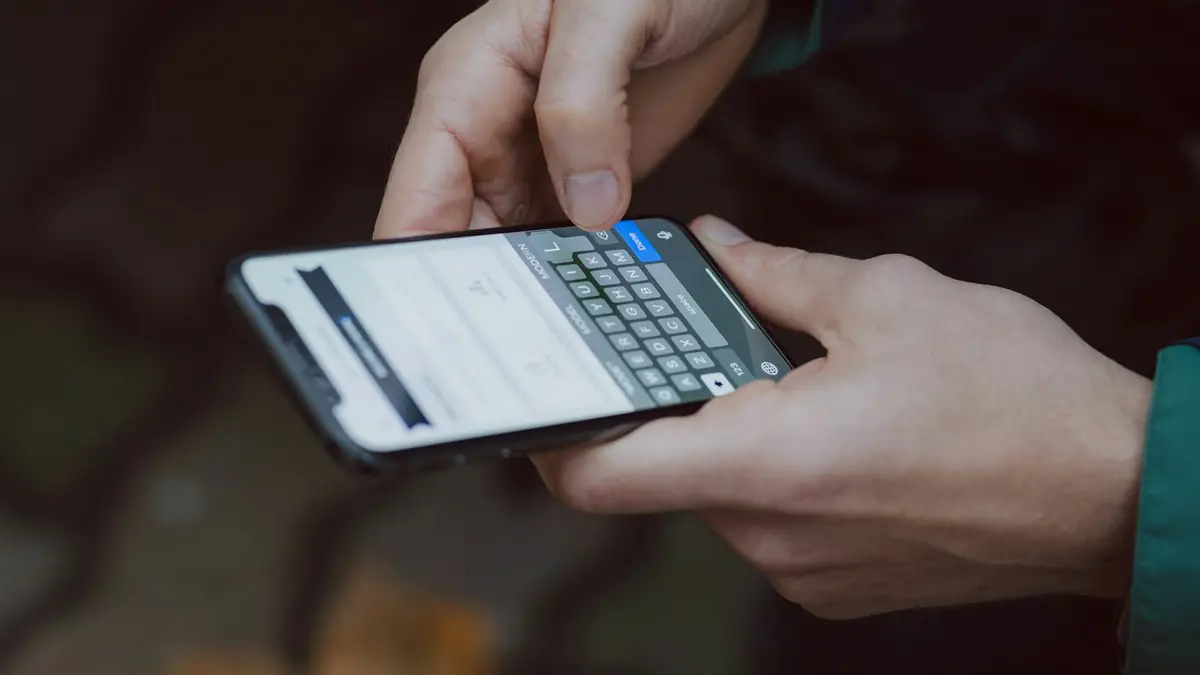
To use them, open a chat and type "/" in the text box: you'll see all your replies, including the default ones the app creates from your profile details, such as your hours or address. Pick one, adjust it if needed and send it.
Keep in mind that a deleted quick reply can't be recovered. WhatsApp recommends keeping a copy of the most important ones outside the app.
When do these tools fall short?
When your chat volume grows or you need to answer different questions at any hour. Automated messages are fixed texts: they don't understand what the customer is asking. In addition, WhatsApp states that they need an active internet connection on your device.
If you get a lot of inquiries, the next step is an AI agent for WhatsApp that answers with your business information, or automating notices such as appointment reminders on WhatsApp. And remember that speed sells: we explain it in replying quickly to your leads.
In short
Back to those three messages at 9 p.m.: with a clear away message, a greeting that guides and quick replies for the next day, no customer goes unanswered. If your volume already calls for something more robust, see our WhatsApp Business API service.
Frequently asked questions
When is the WhatsApp Business greeting message sent?
According to WhatsApp, when a customer messages you for the first time or messages you again after 14 days of inactivity in the chat.
Can I schedule the away message only outside my business hours?
Yes. You can choose Outside of business hours, but that option only appears if you set your hours in your business profile.
How many quick replies can I save?
WhatsApp states a maximum of 50 quick replies.
Why isn't my greeting message being sent?
Check the 14-day rule, the recipients you chose and whether you have Meta Business Agent connected, because in that case greeting messages are turned off automatically.
Do automated messages work with the phone turned off?
WhatsApp states that you need an active internet connection on your device to send greeting and away messages.
Do not stop at the theory: apply it to your business
We implement the WhatsApp Business API end to end, with your real operation. The first conversation is free.